

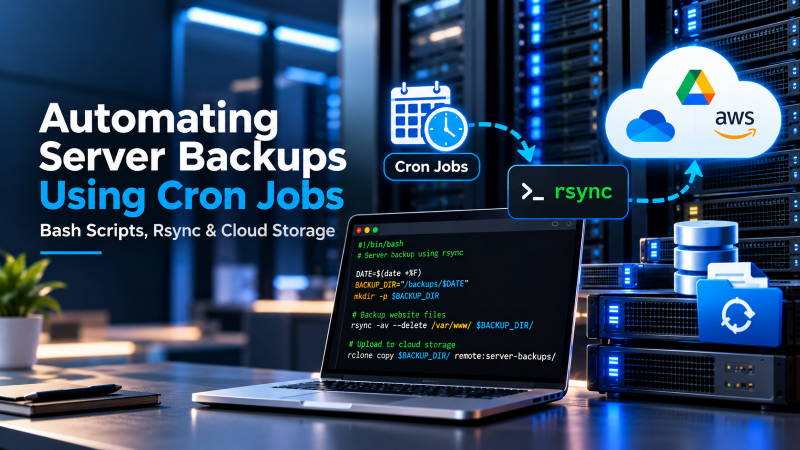
Automating server backups using Linux cron jobs involves combining scheduled crontab timers with modular Bash backup scripts that execute consistent database dumps (`mysqldump –single-transaction`), compress web root file trees (`tar -czf`), apply date-stamped file naming, and securely synchronize archives to off-site secondary storage via `rsync` over SSH or S3-compatible object storage. Implementing automated archive rotation with `find -mtime +30 -delete` prevents local disk exhaustion while ensuring full disaster recovery resilience.
Data loss represents the ultimate existential threat to any modern digital business. Hardware failures, software bugs, accidental command-line deletions, and ransomware attacks can eradicate years of enterprise data within seconds.
Manual backups are inherently flawed because they depend on human memory and availability. True disaster recovery requires an automated, self-executing pipeline that runs continuously in the background.
Deploying production applications on a high-throughput high-speed cloud VPS provides dedicated local NVMe storage and full root cron automation capabilities.
Understanding Linux Cron Syntax & Scheduling
The Linux `cron` daemon executes scheduled commands defined in crontab configuration files. Cron schedules are expressed using five distinct time fields: minute, hour, day of the month, month, and day of the week.
For example, the schedule `0 2 * * *` instructs cron to trigger a script every day at precisely 02:00 AM server time—an ideal low-traffic window for executing disk-intensive database dumps.
Editing your server’s root crontab is accomplished by running `crontab -e` in your terminal, which opens your user schedule in your chosen command-line text editor.
Organizations managing massive multi-terabyte data archives can pair automated backup pipelines with a high-capacity storage dedicated server for secure off-site disaster recovery.
Writing a Production-Ready Bash Backup Script
A resilient backup script must execute atomic database dumps without locking tables, compress website directory assets, and log execution outcomes for audit tracking.
For MySQL or MariaDB, executing `mysqldump –single-transaction –quick –routines` guarantees transactional consistency for InnoDB tables without freezing active eCommerce checkout sessions.
Next, the script packages the web directory using `tar -czvf` with timestamped file names (such as `site_backup_$(date +%Y%m%d).tar.gz`), ensuring clean version tracking.
Customizing automated off-site synchronization, GPG archive encryption, and automated email alerting is simplified when collaborating with an experienced Linux systems administrator.
Off-Site Synchronization via Rsync & Cloud Storage
Storing backup archives on the same physical server as your live website violates fundamental disaster recovery principles. If the primary drive fails or the server is compromised, backups are lost alongside production data.
Using `rsync -avz -e “ssh -i /path/to/key” /local/backups/ user@backup-server:/remote/storage/` transfers compressed archives securely over encrypted SSH tunnels.
Alternatively, tools like Rclone or AWS CLI synchronize archives directly into immutable, versioned S3 buckets, providing geographically redundant disaster recovery that is immune to local datacenter outages.
| Backup Component | Command Implementation | Functional Role |
|---|---|---|
| Database Dump | `mysqldump –single-transaction db > db.sql` | Captures atomic snapshot without locking tables |
| File Compression | `tar -czf backup_$(date +%F).tar.gz /var/www` | Compresses application code & user media |
| Remote Transfer | `rsync -avz -e ssh /backups/ user@remote:/store` | Transfers archives off-site via encrypted SSH |
| Automated Pruning | `find /backups -name “*.tar.gz” -mtime +30 -delete` | Deletes archives older than 30 days to save space |
| Integrity Verification | `tar -tzf backup.tar.gz > /dev/null` | Validates archive integrity before deleting source |
Automated Rotation Policies: Preventing Disk Full Crashes
An unmonitored backup directory will eventually consume 100% of available server disk capacity. When storage space reaches capacity, database daemons crash and the web server halts.
Implementing an automated retention pruning command is critical. Adding `find /backup/path/ -name “*.tar.gz” -type f -mtime +14 -delete` at the conclusion of your script purges archives older than two weeks.
This automated housekeeping maintains predictable disk utilization while ensuring sufficient historical restore points remain available in the event of undetected data corruption.
Automated Failure Notifications via Mailgun or SendGrid: Configuring your backup script to dispatch an alert email if `mysqldump` or `rsync` exits with a non-zero status ensures immediate administrative intervention.
GPG Public Key Encryption: Encrypting backup archives with GPG public keys prior to off-site transfer ensures stored customer data remains unreadable even if remote backup buckets are compromised.
Routine Test Restorations: Scheduling quarterly test restorations in an isolated staging environment verifies that backup archives are valid, uncorrupted, and capable of full production recovery.
SHA-256 Checksum Validation: Generating SHA-256 checksums alongside compressed archives allows destination storage nodes to verify file integrity, confirming backups transferred without packet corruption.
Encrypted Off-Site Storage with GPG: Encrypting backup archives with GPG public keys prior to cloud upload ensures client records remain completely protected from unauthorized disclosure even if backup repositories are compromised.
Automated Failure Notifications via Webhooks: Integrating curl webhook triggers into backup scripts alerts your engineering Slack or Discord channel immediately if any stage of the backup pipeline encounters an error.
Architecting Enterprise-Grade Automated Bash Backup Pipelines
Manual backups are fundamentally flawed because human oversight and inconsistent execution inevitably lead to catastrophic data loss during unexpected hardware failures. Automating server backups using deterministic Bash shell scripts and scheduled Linux cron jobs establishes a reliable, hands-off disaster recovery system.
An enterprise backup script must handle database snapshots, web application document roots, SSL certificate archives, and server configuration files simultaneously. Incorporating modern multi-threaded compression utilities like pigz or zstd ensures that multi-gigabyte archives are created rapidly with minimal CPU overhead.
To eliminate data corruption risks, database backups must be generated using consistent snapshot flags. For MySQL and MariaDB, executing mysqldump --single-transaction --quick ensures transactional integrity across InnoDB tables without locking active database writes or interrupting visitors.
Best Practices for Scripted Backup Automation
Designing a bulletproof automation script requires incorporating strict error handling, cryptographic integrity checksums, and secure file permission masks. Every automated script should exit immediately if any subcommand fails, preventing partial or corrupt archives from overwriting valid backups.
- Strict Bash Execution Flags: Begin scripts with
set -euo pipefailto force immediate script termination upon unhandled execution errors. - Multi-Threaded Compression: Utilize
zstd -T0orpigz -p 4to leverage all available CPU cores for lightning-fast archive compression. - SHA256 Checksum Generation: Calculate and write SHA256 hashes alongside every backup archive to verify storage integrity before restoration.
- Strict File Permission Masking: Set
umask 077at script initiation to ensure backup files are readable solely by the root superuser.
Off-Site Cloud Replication and Retention Management with Rclone
Storing backup archives solely on the local server filesystem violates fundamental disaster recovery principles. If the physical host experiences a catastrophic NVMe drive failure or datacenter connectivity outage, locally stored backup archives are permanently lost alongside production data.
Integrating rclone into your automated backup script provides seamless, encrypted off-site replication to cloud object storage providers like AWS S3, Cloudflare R2, or Wasabi. Automated retention policies purge local archives older than 7 days while maintaining rolling 30-day historical archives in cloud storage.
- Zero-Knowledge Client-Side Encryption: Use rclone cryptographic remotes to encrypt archives locally before transmission across public networks.
- Bandwidth and Concurrency Throttling: Limit transfer speeds using
--bwlimitduring business hours to prevent saturating production network bandwidth. - Automated Retention Rotation: Run
find /backups -type f -mtime +7 -deleteto automatically prune outdated local archive tarballs. - Real-Time Webhook Notifications: Integrate curl calls to dispatch instant Telegram, Slack, or Discord alerts upon backup completion or failure.
Automating Disaster Recovery Drills with Headless Container Tests
An automated backup pipeline is only as reliable as its restoration process. Top-tier system administrators configure automated monthly disaster recovery drills that restore compressed backup archives into isolated headless Docker containers.
The automated testing script extracts the database archive, starts a temporary MySQL container, and validates database table checksums without touching production infrastructure. If any table corruption or extraction error is detected, an automated high-priority alert notifies sysadmins immediately.
Conclusion: Achieving Total Disaster Recovery Peace of Mind
An automated, cloud-replicated backup pipeline is the single most valuable insurance policy an enterprise hosting infrastructure can possess. By eliminating manual intervention and establishing deterministic backup schedules, organizations ensure complete business continuity regardless of hardware failure or cyber threats.
Combining rigorous Bash scripting, modern compression algorithms, encrypted off-site replication, and routine recovery simulation drills transforms disaster recovery from an operational worry into a dependable, automated foundation for digital growth.
For developers and organizations scaling web applications or requiring dedicated virtual environments, exploring high-performance Linux VPS hosting delivers guaranteed NVMe storage, KVM hypervisor isolation, and full root access for production workloads.
Frequently Asked Questions
How do I check if my cron job ran successfully?
You can inspect system cron execution logs by running `grep CRON /var/log/syslog` on Ubuntu/Debian or `tail -n 50 /var/log/cron` on AlmaLinux/CentOS systems.
Why does my script run manually but fail when executed by cron?
Cron runs with a minimal environment PATH. Always use absolute binary paths (e.g., `/usr/bin/mysqldump`, `/bin/tar`, `/usr/bin/rsync`) inside your scripts to prevent command-not-found errors.
Does `mysqldump –single-transaction` lock my database?
No! For InnoDB tables, `–single-transaction` creates a point-in-time snapshot at the database level, allowing online reads and writes to proceed without locking tables.
How can I securely transfer backups without typing SSH passwords?
Generate an SSH key pair with `ssh-keygen` and copy the public key to the remote storage server using `ssh-copy-id`. This enables passwordless, encrypted automated rsync transfers.
What is the 3-2-1 backup rule?
The 3-2-1 rule mandates maintaining 3 total copies of your data, across 2 different storage media types, with at least 1 copy stored off-site in a separate physical datacenter.