

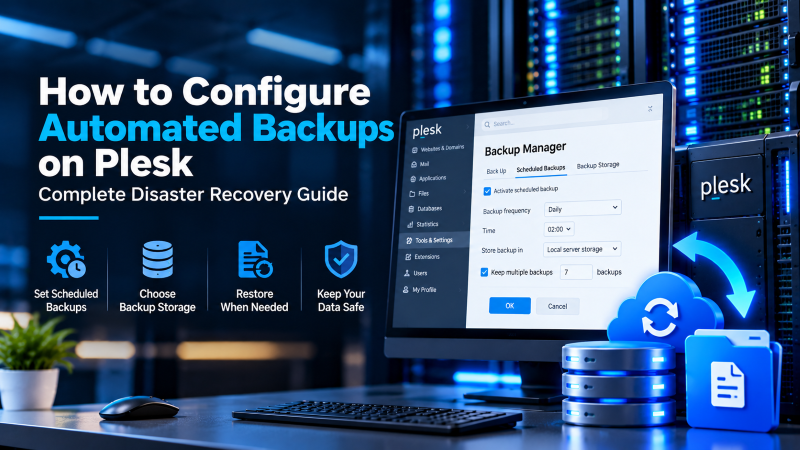
To configure automated backup schedules in the Plesk control panel, access the Backup Manager under Tools & Settings (or within an individual Subscription). Configure a hybrid backup schedule: execute a comprehensive Full Backup weekly and lightweight Incremental Backups daily during off-peak hours (e.g., 02:00 AM). To protect against physical server failure, always configure remote off-site storage destinations (via Amazon S3, Google Drive, Backblaze B2, or external SFTP) rather than storing archives exclusively on the local server disk. Mandate password encryption for backup archives and set a rolling retention policy of 14 to 30 days to optimize storage consumption.
In modern web hosting operations, data loss is an existential business threat. Unforeseen server hardware crashes, human errors during configuration edits, flawed software updates, and malicious ransomware attacks can obliterate production websites, database transactions, and customer email records in seconds. Relying on manual backups is an unreliable practice that inevitably fails when administrators forget routine schedules. For verified technical specifications and deployment parameters, consult the official Linux Kernel Documentation.
The Plesk control panel incorporates an enterprise-grade Backup Manager providing comprehensive data protection across three essential capabilities:
- 1. Multi-Tier Granular Restores: Restores an entire server, an individual domain subscription, or a single database table without downtime.
- 2. Encrypted Off-Site Streaming: Securely transmits encrypted backup archives via SFTP, Amazon S3, or Google Drive, isolating data from host failure.
- 3. Incremental Differential Snapshots: Conserves server bandwidth and storage capacity by only backing up modified files since the last full run.
This technical deployment manual details the operational mechanics of Plesk backups, compares storage backup targets, provides a step-by-step configuration runbook for remote cloud backups, and outlines essential disaster recovery verification protocols. For modern production environments, provisioning workloads on secure cloud VPS hosting with automated disaster recovery support provides dedicated vCPU allocations, ultra-fast NVMe storage, and complete root administrative access.
Core Concepts: Full vs. Incremental Backups in Plesk
Understanding the difference between full and incremental backups is critical to balancing server CPU load, network bandwidth, and storage capacity:
- Full Backups: A full backup captures 100% of your selected server assets: virtual host web files, database tables, user mailboxes, SSL certificates, DNS zone files, and control panel configuration records. While full backups provide self-contained restoration archives, generating them daily consumes high disk I/O, server CPU, and storage space.
- Incremental Backups: An incremental backup archives only data that has been modified, added, or deleted since the most recent backup was executed. Incremental backups take seconds to generate, consume minimal CPU cycles, and reduce storage requirements by over 80%. When restoring, Plesk automatically merges the original full backup with subsequent incremental chains.
When running database-intensive applications on an secure cloud VPS hosting with automated disaster recovery support, scheduling incremental backups during early morning hours prevents CPU spikes from impacting active customer browsing sessions.
Backup Target Comparison Matrix
Where you store your backup archives determines whether your business can survive a catastrophic datacenter outage. Below is an engineering comparison of backup storage targets:
| Storage Destination | Ransomware Isolation | Hardware Failure Resilience | Storage Scalability | Recommended Practice |
|---|---|---|---|---|
| Local Server Storage (/var/lib/psa/dumps) | Zero (Vulnerable to root compromise) | Zero (Disk failure destroys backups) | Limited by VPS disk space | Fast rollback before minor updates only |
| Remote FTP / SFTP Server | Moderate (Isolated network host) | High (Independent physical server) | Configurable storage capacity | Secondary offsite datacenter archive |
| S3-Compatible Cloud Storage (Amazon S3 / Wasabi / B2) | Maximum (Object versioning & immutability) | Maximum (99.999999999% durability) | Virtually unlimited elasticity | Gold standard enterprise disaster recovery |
For organizations maintaining sovereign internal storage architectures, pairing Plesk with migrating website data and configurations across Plesk servers provides an encrypted, self-hosted off-site backup vault without recurring public cloud egress fees.
Step-by-Step Runbook: Configuring Automated Remote Backups
Follow this production sequence in Plesk Obsidian to configure automated, encrypted backups pushing to remote S3 or SFTP cloud storage:
Step 1: Install Cloud Storage Extensions
Plesk supports native cloud storage plugins. In the left navigation menu, go to Extensions → Extensions Catalog. Search for your preferred cloud storage provider: Amazon S3 Backup, Google Drive Backup, or DigitalOcean Spaces Backup, and click Install.
Step 2: Connect Remote Cloud Storage
Navigate to Tools & Settings → Backup Manager → Remote Storage Settings. Select your installed cloud provider (e.g., Amazon S3). Input your storage credentials: For comprehensive implementation details and operational workflows, review our guide on migrating website data and configurations across Plesk servers.
- S3 Endpoint:
s3.amazonaws.com(or custom compatible URL). - Bucket Name: Enter your dedicated private backup bucket.
- Access Key & Secret Key: Supply an IAM user key with restricted S3 read/write permissions.
Click Save. Plesk tests API communication and confirms storage connectivity.
Step 3: Define Backup Schedule & Retention Policy
In Backup Manager, click Schedule and configure the following enterprise parameters:
- Activate this backup task: Checked.
- Run this task: Select
Dailyat02:00. - Perform full backup: Select
WeeklyonSunday. - Store in: Check your remote cloud storage destination (e.g., S3). Uncheck local storage to conserve server disk space.
- Maximum number of full backup files to store: Set to
4(maintains a rolling 1-month window of full backups). - Protect backup with password: Mandate a strong 24-character cryptographic password. This encrypts database dumps and files before transmission.
Click Apply. Plesk registers the automated task in system crontab, executing silent backups every night without administrator intervention.
Disaster Recovery Protocol: Testing Backup Restorations
A backup that has never been tested is not a valid backup. Periodic disaster recovery drills prevent surprises during genuine emergencies. Follow these guidelines:
- Test Granular Restorations: Plesk Backup Manager allows administrators to restore individual items without overwriting the entire server. Routinely test restoring a single MySQL database or email mailbox to verify encryption key validity.
- Audit Log Notifications: Configure email notifications under Backup Manager → Schedule → If errors occur during execution. If an external storage bucket rejects uploads due to expired IAM credentials, you will be notified immediately.
- Monitor Local Storage Disk Space: During archive generation, Plesk compiles files into temporary chunks before offloading to remote storage. Ensure
/tmpand/var/lib/psa/dumpspossess at least 15% free disk capacity.
To ensure host security rules protect your backup daemon from external interference, review our setting up dedicated private cloud backup repositories on VPS for complete SSH, firewall, and intrusion prevention configurations.
Advanced Administration: Automating Backups via Plesk CLI
For systems administrators managing large hosting environments or multi-tenant server clusters, executing and scheduling backups via the Linux command line provides granular automation capabilities beyond the graphical user interface. Plesk includes native administrative CLI utilities: pleskbackup and pleskrestore.
# 1. Execute an immediate full server backup and stream to an encrypted remote FTP vault
pleskbackup server --output-file=ftp://ftp_user:[email protected]/backups/full_$(date +%F).tar -v

# 2. Backup a specific client subscription with database encryption
pleskbackup domains-name example.com --output-file=/var/lib/psa/dumps/example_$(date +%F).tar --password=StrongEncryptionKey

# 3. Validate backup archive integrity before restoration
pleskrestore --validate-backup /var/lib/psa/dumps/example_2026-09-30.tar
By scripting these CLI utilities into custom monitoring pipelines, DevOps teams can trigger automated snapshots before continuous deployment updates and pipe alerts into centralized logging dashboards.
Cryptographic Security: AES-256 Encryption Governance
When sending server archives across public networks to cloud object storage or secondary datacenters, unencrypted backups present a major security vulnerability. Anyone intercepting the archive gains full access to database records, customer passwords, and SSL private keys. Plesk enforces AES-256 bit symmetric key encryption. Ensure your encryption keys are rotated annually and backed up in an off-site physical safe or enterprise key management vault (KMS). To strengthen overall system reliability and security, explore our technical tutorial on setting up dedicated private cloud backup repositories on VPS.
Additionally, configure Plesk to generate MD5/SHA256 checksums alongside each backup tarball. Comparing the stored cryptographic checksum against the remote copy guarantees that data in transit was not corrupted by network packet drops or transient connection timeouts during transmission. Furthermore, maintaining strict file permission governance (chmod 600) prevents local unprivileged users from reading backup archives.
For developers and organizations scaling web applications or requiring dedicated virtual environments, exploring high-performance Linux VPS hosting delivers guaranteed NVMe storage, KVM hypervisor isolation, and full root access for production workloads.
Conclusion: Bulletproof Automated Backup Hygiene on Plesk
An automated backup system is your last line of defense against hardware disasters, ransomware infections, and accidental deletion. Configuring Plesk’s automated Backup Manager to store encrypted, incremental snapshots on remote SFTP or AWS S3 cloud storage guarantees rapid disaster recovery.
Frequently Asked Questions
Why does my server slow down when Plesk runs backups?
Compressing gigabytes of data and executing database dumps consumes CPU cycles and disk I/O. In Tools & Settings → Backup Manager → Settings, check the box for Run backup tasks with low priority to throttle backup CPU usage and prioritize active web visitors.
Can I exclude specific large directories (like video files or cache) from backups?
Yes. In the backup settings for a subscription, enter directory paths in the Exclude files from backup field (e.g., /wp-content/cache/*, /uploads/videos/*) to keep backup file sizes compact and fast.
What happens if I forget the password used to encrypt my Plesk backup?
Plesk uses industry-standard AES encryption. If you lose or forget the encryption password, the backup archive cannot be decrypted or restored by any automated recovery tool. Always document backup passwords in a secure team password manager.
Can individual customers and domain owners configure their own backups?
Yes. If granted permission in their service plan, subscription users can log into their domain panel, access their dedicated Backup Manager, and configure private automated schedules to their personal Google Drive or Dropbox accounts.
How does Plesk ensure databases are backed up consistently without corrupting active transactions?
Plesk executes transactional database dumps using the --single-transaction flag for InnoDB engines. This guarantees ACID consistency without locking tables or interrupting active website checkout transactions.