

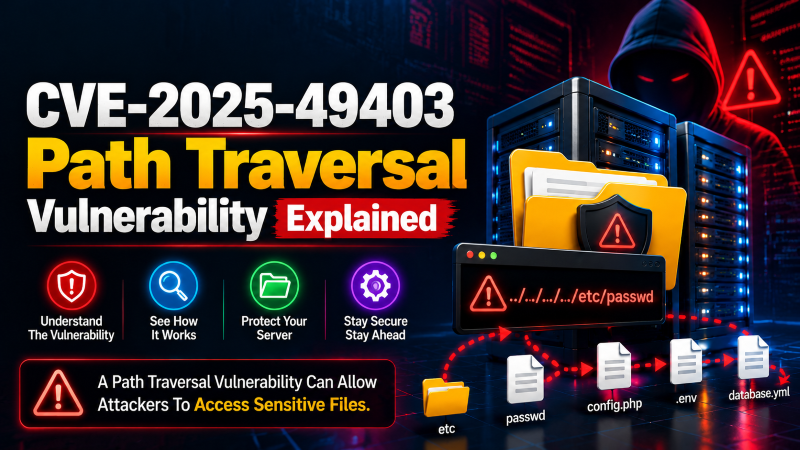
CVE-2025-49403 is a path traversal vulnerability enabling remote unauthenticated actors to read arbitrary files from the server host filesystem via dot-dot-slash (../) sequences in URL parameters. Mitigation requires applying the software vendor update, implementing strict input sanitization routines, and restricting web process permissions using chroot and AppArmor/SELinux profiles.
📑 Table of Contents
Quick NavigationIntroduction to CVE-2025-49403
CVE-2025-49403 refers to a security flaw found in the Premium Age Verification Restriction plugin for WordPress. The flaw category as a Path Traversal vulnerability, where attackers can potentially gain access to protected directories and files outside the intended scope. Website administrators using this plugin are advice check their install version and apply the necessary security update as soon as possible.
What is the Premium Age Verification Restriction Plugin?
The Premium Age Verification Restriction Plugin is a WordPress plugin that restricts access to a website based on the age of the visitor. It’s type used for age-relate content, products, or services, and displays an age verification page before allow access to the site.
Understanding Path Traversal Vulnerabilities
A Path Traversal vulnerability arises when an application fails to properly validate file paths supplied by a user. An attacker can exploit this weakness to access files and directories outside the location the application intended to expose.
How CVE-2025-49403 Works
CVE-2025-49403 appears to cause by inadequate validation of file path data passed to the plugin. An attacker can exploit this vulnerability using carefully crafted requests to gain unauthorized access to files that should not be publicly accessible.
Affected Versions and Risk Level
This vulnerability affects all websites running the Premium Age Verification Restriction Plugin up to and including version 3.0.2. As Path Traversal vulnerabilities can expose sensitive files, affected websites are at risk of unauthorized data exposure. Administrators should update the plugin as soon as a patched version is available and follow the security practices outlined below to protect their WordPress site.
Potential Security Impact
The consequences of such a compromise can be serious for both the website owner and its visitors. The extent of the damage typically depends on factors such as the attacker’s intent and the level of access gained, and may include:
- Data Breaches: Attackers can gain unauthorized access to your database, exposing sensitive user information, passwords, payment details, and proprietary data.
- SEO Defacement and Spam: Hackers often inject malicious SEO links or redirect your traffic to shady third-party websites, causing search engines like Google to block your domain.
- Total Site Takeover: If an attacker gains administrative privileges, they can lock you out of your own dashboard, delete content, or hold your site hostage.
- Reputational and Financial Damage: A hacked site erodes user trust instantly. Rebuilding that trust, fixing the site, and potentially paying regulatory fines for data exposure can be incredibly costly.
How Attackers Can Exploit This Vulnerability
Attackers use a variety of automated tools and targeted techniques to find and exploit weaknesses in a WordPress environment. The most common exploitation vectors include:
- Outdated Plugins and Themes: Vulnerabilities (like SQL Injection or Cross-Site Scripting) in unpatched plugins are the #1 entry point for hackers. They scan thousands of sites a minute looking for known, unpatched versions.
- Brute-Force Attacks: Attackers use automated scripts to guess weak admin passwords by trying thousands of combinations every second.
- Malicious File Uploads: If a form or file-upload feature isn’t properly secure, an attacker can upload a malicious PHP script (a “web shell”) to execute arbitrary commands on your server.
- Supply Chain Attacks: Sometimes, abandoned plugins buy by malicious actors who inject malware into a legitimate update unsuspecting users then install.
How to Protect Your WordPress Website
Securing your site doesn’t require you to be a cybersecurity expert. Taking these immediate, actionable steps will close the vast majority of security gaps:
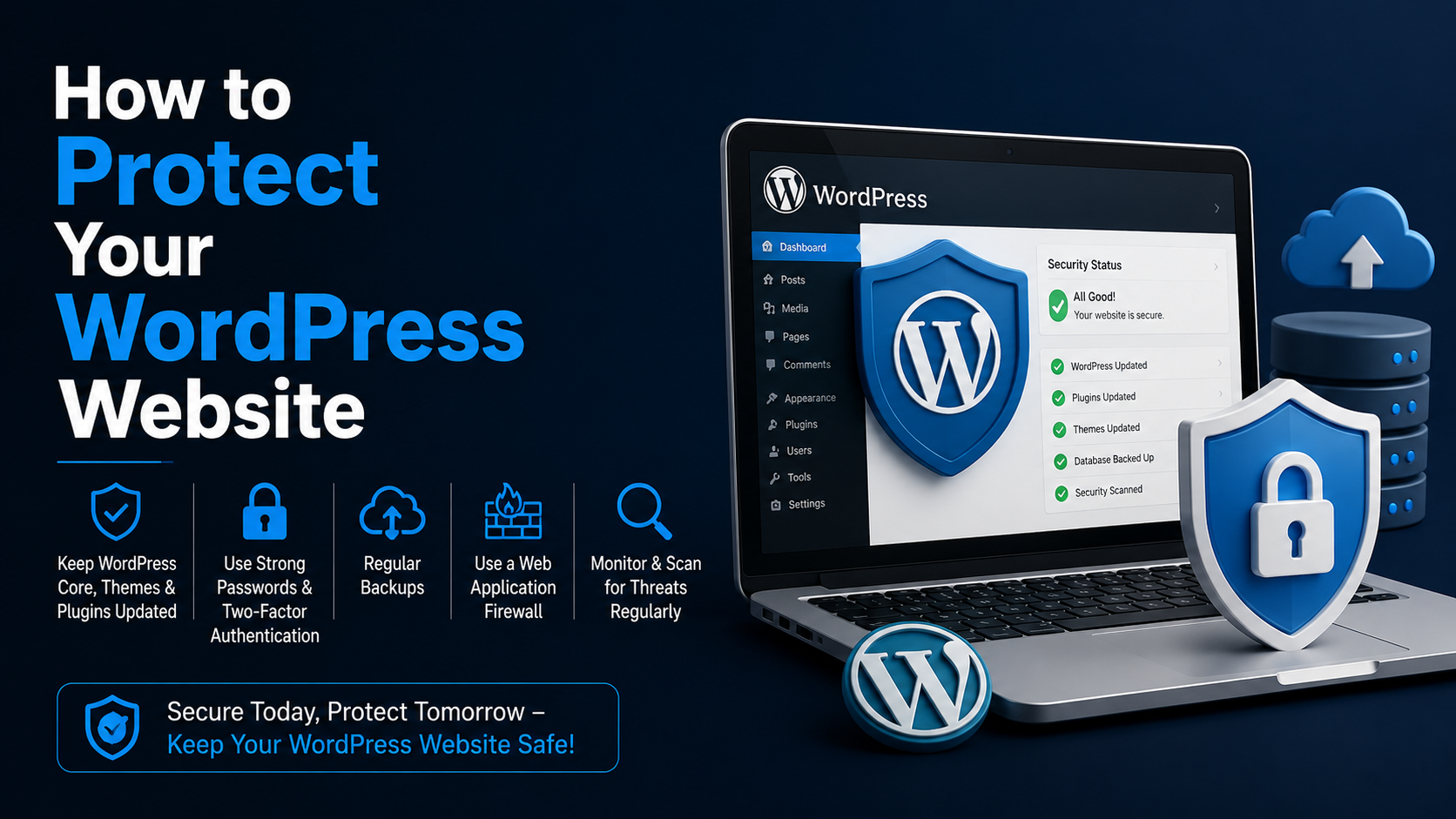
- Turn on Automatic Updates: Ensure that WordPress core, your themes, and your plugins are set to update automatice so patches are applied the moment they are released.
- Install a Web Application Firewall (WAF): Tools like Wordfence, Sucuri, or MalCare act as a shield, blocking malicious traffic and exploit attempts before they ever reach your site.
- Enforce Strong Authentication: Force all users to use complex passwords and implement Two-Factor Authentication (2FA) for login attempts.
- Change the Default Login URL: Move your login page away from /wp-admin or /wp-login.php to a custom URL to instantly stop brute-force bots in their tracks.
Best Practices for WordPress Security
Long-term security requires maintaining good digital hygiene. Incorporate these best practices into your routine:
| Security Layer | Action Plan |
| Backups | Set up automated daily backups stored on an external cloud (like AWS or Google Drive), so you can restore your site with one click if things go wrong. |
| User Management | Practice the “Principle of Least Privilege.” Only give Administrator access to people who absolutely need it; use Editor or Author roles for everyone else. |
| Hosting | Choose a managed WordPress hosting provider that offers server-level firewalls, malware scanning, and isolated environments. |
| Plugin Hygiene | Delete (don’t just deactivate) any plugins or themes you aren’t actively using. Fewer lines of code mean a smaller attack surface. |
Conclusion: Proactive WordPress Hardening Against Path Traversal (CVE-2025-49403)
WordPress powers over 40% of all websites, which makes it an attractive target for cybercriminals. Security is not something you set up once. It is an ongoing process of updating your software, protecting your data, and actively defending against attacks. With the right measures in place, such as a good firewall, regular updates, and controlled access. You can greatly reduce your chances of hack.
To ensure round-the-clock infrastructure availability, proactive security hardening, and rapid vulnerability patching, partnering with proactive server management and security support safeguards servers against unauthorized access and operational downtime.
Frequently Asked Questions
What is CVE-2025-49403?
CVE-2025-49403 is a security vulnerability found in the Premium Age Verification Restriction WordPress plugin.
Which plugin versions are affected?
Versions up to 3.0.2 are reported as affected.
What type of vulnerability is CVE-2025-49403?
CVE-2025-49403 is an unauthenticated Path Traversal (Arbitrary File Read) vulnerability, allowing remote attackers to supply directory traversal sequences (such as ../) to access sensitive server configuration and system files outside the intended web root.
How can website owners protect themselves?
Update the plugin to the latest version and follow WordPress security best practices.
How do I check if my website is vulnerable?
Check the installed plugin version from the WordPress admin dashboard.