

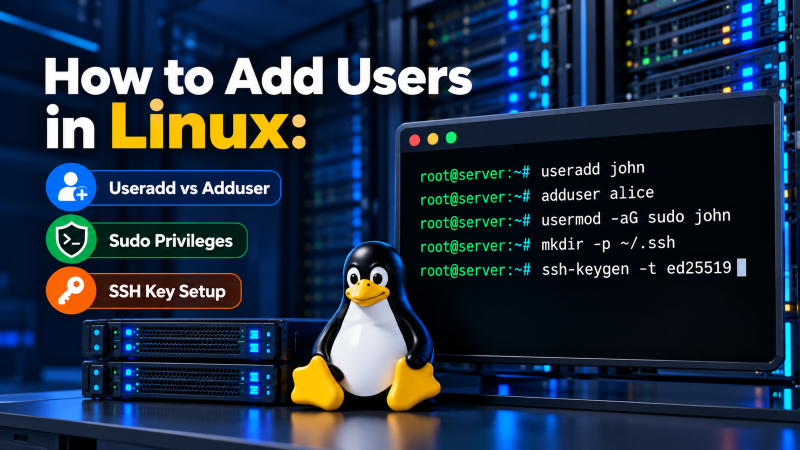
Quick Answer: How to Add a User in Linux (Ubuntu, Debian & RHEL)
To add a new user in Ubuntu or Debian with interactive home directory creation, execute sudo adduser username. In RHEL, CentOS, or Rocky Linux, use the POSIX standard command sudo useradd -m -s /bin/bash username followed by sudo passwd username. To grant administrative privileges, add the user to the sudoers group using sudo usermod -aG sudo username (Ubuntu/Debian) or sudo usermod -aG wheel username (RHEL).
Standard: useradd -m -s
Sudo / Wheel Privilege
User administration represents one of the foundational duties of every Linux system administrator. Whether managing a local staging environment, a production high-performance Linux VPS instance, or an enterprise dedicated bare-metal server, enforcing least-privilege user access prevents accidental system breakage and defends against external cyber intrusions.
Operating exclusively as the root superuser introduces catastrophic risk—a single errant command can corrupt system libraries or overwrite critical partitions. Creating individual user accounts equipped with scoped sudo administrative privileges forms the cornerstone of sound server operations.
Linux User Management Fundamentals: UID, GID, and Security Context
Every account within a Linux operating system is represented internally not by its human-readable username, but by numerical identifiers: a User Identifier (UID) and a primary Group Identifier (GID). The system kernel evaluates these IDs against file inode permissions (Read, Write, Execute) to enforce access boundaries.
User account parameters are maintained across three core system configuration databases:
/etc/passwd: Stores general account information including username, numerical UID, GID, home directory path, and default login shell. This file is readable by all users./etc/shadow: Houses salted cryptographic password hashes, password aging parameters, and account expiration dates. Accessible strictly by therootuser (permissions0640or0000)./etc/group: Catalogues group definitions, GIDs, and supplementary user group memberships.
The Critical Differences: useradd (Low-Level) vs. adduser (Interactive)
Novice administrators often confuse useradd and adduser. While both utilities provision user accounts, their architecture and behavioral defaults differ substantially:
| Feature / Behavior | useradd (Native Binary) | adduser (Perl Script Wrapper) |
|---|---|---|
| Utility Type | Compiled C binary (Standard on all Linux distros) | High-level interactive Perl script (Debian / Ubuntu) |
| Home Directory Creation | Does NOT create home directory without -m |
Automatically creates /home/username & copies skeleton |
| Password Prompting | Creates locked account; requires passwd |
Interactively prompts for password and confirmation |
| Scripting Suitability | Ideal for Bash scripts, Ansible & CI/CD pipelines | Best for manual interactive terminal sessions |
According to the official Linux man-pages useradd specification, useradd operates on low-level system defaults defined in /etc/default/useradd and /etc/login.defs.
Step-by-Step Command Walkthrough: Adding a New User
Follow these distribution-specific command workflows to provision user accounts properly:
Method A: Interactive Setup on Ubuntu / Debian
On Debian-derived distributions, run the friendly adduser utility as root or with sudo:
sudo adduser developer
# The system prompts for password, full name, room number, and confirmation:
# Adding user `developer' ...
# Adding new group `developer' (1001) ...
# Adding new user `developer' (1001) with group `developer' ...
# Creating home directory `/home/developer' ...
# Copying files from `/etc/skel' ...
Method B: Universal Command on RHEL, CentOS, Rocky Linux & AlmaLinux
On Red Hat Enterprise Linux and upstream distributions, utilize useradd with explicit flags to guarantee home directory generation and standard Bash shell assignment:
# Create user with home directory (-m) and bash shell (-s)
sudo useradd -m -s /bin/bash developer

# Set the initial account password
sudo passwd developer
Granting Sudo Administrative Privileges: Sudoers & Wheel Groups
Once an account is created, grant administrative execution rights by appending the user to the appropriate administrative group using the usermod tool:
Ubuntu & Debian: Sudo Group
sudo usermod -aG sudo developerThe -aG flag appends the user to the group without overwriting existing supplementary groups.
RHEL & Rocky Linux: Wheel Group
sudo usermod -aG wheel developerOn RHEL systems, the wheel group is predefined in /etc/sudoers with full root execution rights.
Verify sudo membership by switching to the user and executing sudo whoami:
su - developer
sudo whoami
# Output: root
Configuring SSH Public Key Authentication for New Accounts
Password-based SSH authentication is vulnerable to brute-force dictionary attacks. Enforcing Ed25519 or RSA-4096 public key authentication hardens your server against unauthorized penetration:
# 1. Switch to the newly created user
sudo su - developer

# 2. Create the hidden .ssh directory with strict 700 permissions
mkdir -p ~/.ssh
chmod 700 ~/.ssh

# 3. Paste the client public key into authorized_keys and lock permissions to 600
echo "ssh-ed25519 AAAAC3NzaC1lZDI1NTE5AAAAIG... client-key" >> ~/.ssh/authorized_keys
chmod 600 ~/.ssh/authorized_keys
For organizations deploying corporate web infrastructure, explore our managed Linux web hosting plans featuring hardened server environments, automated firewalls, and instant SSH terminal access.
Account Lockdown: Disabling Shell Access, Password Expiry & Deletion
Effective account lifecycle management includes terminating inactive or compromised credentials:
- Lock Account Password:
sudo passwd -l developer(Prepends!to hash in/etc/shadow). - Disable Interactive Shell Access:
sudo usermod -s /sbin/nologin developer(Blocks terminal login while preserving SFTP/service permissions). - Delete User & Purge Home Directory:
sudo userdel -r developer(Removes user from system databases and deletes/home/developer).
Frequently Asked Questions: Linux User Management
What is the difference between useradd and adduser in Linux?
+
useradd is a low-level native C binary available across all Linux distributions that creates users based on default configuration files without prompting for passwords. adduser is an interactive Perl script wrapper primarily found in Debian and Ubuntu that automatically creates home directories, copies skeleton files, and prompts for passwords interactively.
How do I create a Linux user with a specific UID?
+
-u flag with useradd. For example: sudo useradd -u 1500 -m -s /bin/bash customuser explicitly assigns User ID 1500 to the new account.
Why is my new user unable to use the sudo command?
+
sudo group on Debian/Ubuntu (sudo usermod -aG sudo username) or to the wheel group on RHEL/CentOS (sudo usermod -aG wheel username).
How do I delete a Linux user along with their home directory?
+
sudo userdel -r username. The -r flag recursively removes the user’s home directory and mail spool from the server filesystem.
How can I list all existing user accounts on a Linux server?
+
cut -d: -f1 /etc/passwd or getent passwd | cut -d: -f1 to display all usernames registered on the operating system.
SysAdmin Best Practices: Hardening User Access on VPS & Dedicated Servers
Implementing disciplined user access control protects your server infrastructure against credential hijacking and lateral network movement. Enforce SSH key-based authentication, disable direct password logins in /etc/ssh/sshd_config, and mandate multi-factor authentication for sensitive administrative operations.
Conclusion: Choosing Your Optimal Linux Hosting Platform
Whether your application demands agile horizontal flexibility or pure bare-metal computational power, deploy your workloads on Onlive Server’s premier global infrastructure.
High-Performance Linux VPS
Best for startups, staging environments, growing web apps, and agile development pipelines.
- Guaranteed KVM vCPU cores & High-Speed NVMe storage
- Instant automated provisioning with scalable vertical upgrades
- Full root shell access on Ubuntu, Debian, AlmaLinux & Rocky
Dedicated Bare-Metal Server
Best for enterprise databases, production ERPs, private clouds, and sustained high-throughput workloads.
- 100% single-tenant bare-metal Intel Xeon / AMD EPYC CPUs
- Hardware RAID with enterprise NVMe Gen4 storage
- Unmetered 1 Gbps / 10 Gbps uplinks with automated DDoS protection
⚡ Global Tier-3 Datacenter Facilities
👨💻 24/7/365 Expert Linux SysAdmin Engineering