

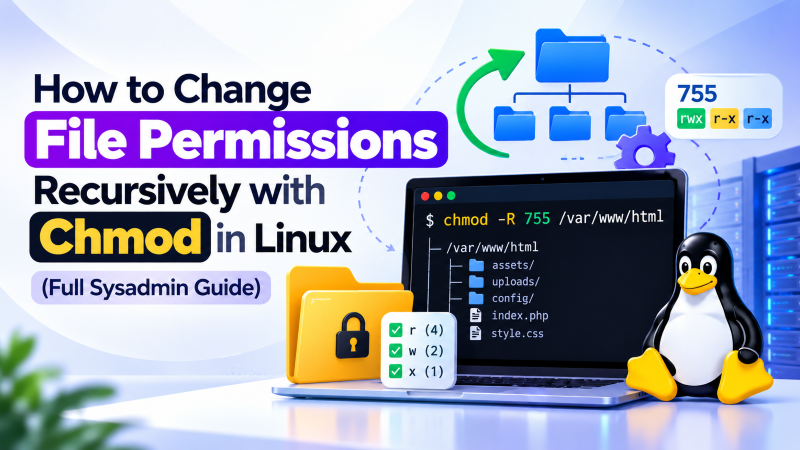
To change file permissions recursively in Linux, use the chmod -R <permissions> <directory> command. However, blanket recursion applies the same permission to both directories and files, which can break directory execution. The recommended sysadmin best practice is separating directories and files using the find command: find /path -type d -exec chmod 755 {} + for directories, and find /path -type f -exec chmod 644 {} + for files.
Understanding Linux Permissions: User, Group, and Others
Linux security architecture relies on an ownership and permission matrix. Every file and directory on a Linux filesystem assigns specific read (r=4), write (w=2), and execute (x=1) permissions to three distinct classes: Owner (u), Group (g), and Others (o).
For directories, the execute permission (x) has a specialized meaning: it controls the ability to enter the directory (via cd) and list its contents. If you remove the execute bit from a directory, users and web servers cannot read the files inside.
When administering a production Linux cloud VPS, mastering precise permission management prevents common web server HTTP 403 Forbidden errors and shields sensitive configuration files from unauthorized access.
Using the chmod -R Flag for Blanket Recursion
The standard syntax for changing permissions recursively across an entire directory tree is the -R (or --recursive) flag:
chmod -R 755 /var/www/html/myprojectThis command traverses the target directory, applying read, write, and execute permissions (755) to every child directory and file. While simple, applying 755 across files marks ordinary text files, scripts, and images as executable, introducing serious security vulnerabilities.
Even worse, executing chmod -R 644 strips the execute bit from all directories, instantly locking users and services out of the entire folder hierarchy.
The Sysadmin Standard: Differentiating Files & Directories via find
To adhere to strict Linux security hardening standards, systems administrators separate directory permissions from file permissions. Web directories require 755 (rwxr-xr-x) so web services can traverse them, while static files require 644 (rw-r–r–).
Using the Linux find command with the -exec action allows you to target directories and files independently:
# Set all directories to 755
find /var/www/html -type d -exec chmod 755 {} +

# Set all files to 644
find /var/www/html -type f -exec chmod 644 {} +
The trailing + sign instructs find to append multiple arguments into a single chmod execution, drastically reducing process fork overhead when processing tens of thousands of files.
The Dangerous Anti-Pattern: Why Never to Use chmod -R 777
Novice developers frequently resort to chmod -R 777 to quickly resolve permission errors when configuring web servers or CMS platforms. This is one of the most hazardous actions in Linux administration.
Setting 777 grants read, write, and execute privileges to literally everyone on the server. If a malicious actor compromises a vulnerable web script, they can overwrite system files, plant web shells, and compromise the entire operating system.
For organizations operating multi-tenant hosting or managing high-compliance workloads on a bare-metal server, maintaining strict principle-of-least-privilege permissions is critical for data integrity.
Pairing chmod with chown for Complete Ownership Control
Permissions are only half of the security equation; user and group ownership determines which entity the permission bits apply to. Web services like Apache or Nginx typically run under the www-data or nginx user.
To ensure your web daemon can read and serve your web application assets, execute recursive ownership assignment:
chown -R www-data:www-data /var/www/htmlIf you require complex access control lists (ACLs) or automated permission audits across enterprise infrastructure, collaborating with an experienced Linux administrator guarantees robust server security without application downtime.
Advanced Permission Hardening: SUID, SGID & Sticky Bits
Beyond standard read, write, and execute permissions, Linux filesystems support special permission bits: SUID (4000), SGID (2000), and the Sticky Bit (1000). Applying recursive permissions without understanding these special bits can inadvertently strip necessary elevated privileges from system binaries.
Setting the SGID bit on a shared collaborative directory (e.g., chmod 2775 /var/www/shared) ensures that newly created files automatically inherit the parent directory’s group ownership rather than the primary group of the creating user.
The Sticky Bit (chmod +t /tmp) protects public writable directories by allowing only the file owner or root to delete or rename files within the folder. This prevents unprivileged users from deleting each other’s temporary files in shared environments.
Automated permission auditing scripts can be scheduled via cron to scan production web roots for dangerous 777 permissions or unexpected SUID binaries, alerting security teams before vulnerabilities can be exploited.
Understanding Linux File Permission Architecture: Read, Write, and Execute
Linux security relies fundamentally on a granular, kernel-enforced permission model governing how users and processes interact with files and directories. Every file system object maintains permissions divided into three distinct user tiers: the file owner (user), the assigned group, and all other users (others).
Within each tier, three basic permissions determine access capabilities: Read (r or numeric value 4), Write (w or numeric value 2), and Execute (x or numeric value 1). Understanding how these values combine into octal modes (such as 755 or 644) is essential for maintaining server security and software stability.
Assigning excessive permissions, such as the infamous chmod 777, introduces critical vulnerabilities that allow untrusted processes to overwrite sensitive scripts or inject malicious code into web directories.
The Danger of Blanket `chmod -R`: Why Directories and Files Need Different Permissions
A common mistake among junior administrators is running a blanket recursive chmod command such as chmod -R 755 /var/www/html or chmod -R 644 /var/www/html across entire directory trees. This indiscriminately applies the same permission mode to both directories and individual files.
- Why Directories Require Execute (x): In Linux, the execute bit on a directory represents the traverse permission, allowing users to enter and access files within that directory.
- Why Files Should Not Be Executable: Web assets such as HTML, CSS, images, and text files should never have execute permissions, preventing accidental or malicious binary execution.
- The `find` Command Solution: Utilize the powerful Linux
findutility to separate directories from files when updating permissions recursively. - Automated Directory Hardening: Run
find /path -type d -exec chmod 755 {} +to set proper traverse permissions across all folders. - Automated File Hardening: Run
find /path -type f -exec chmod 644 {} +to secure standard content files without breaking folder navigation.
Advanced Permission Modes: SUID, SGID, and Sticky Bits
Beyond standard read, write, and execute permissions, Linux includes three special permission bits that govern executable privilege escalation and directory file deletion. These are the Set User ID (SUID), Set Group ID (SGID), and the Sticky Bit.
The Sticky Bit (represented numerically by a leading 1, as in mode 1777) is crucial for shared directories like /tmp. When applied, users can create and read files in the folder, but only the file owner or root user can delete or rename individual files, preventing malicious user tampering.
- SetUID (Mode 4000): Executes a binary with the privileges of the file owner rather than the executing user (e.g.,
/usr/bin/passwd). - SetGID (Mode 2000): Ensures newly created files within a directory automatically inherit the parent directory’s group ownership.
- Sticky Bit (Mode 1000): Protects shared directories by restricting file deletion strictly to file owners and superusers.
- Auditing Dangerous Permissions: Run
find / -perm -4000 -type f 2>/dev/nullperiodically to audit SUID binaries across your server.
Managing Recursive Ownership with `chown` and Default Umasks
File permissions work in tandem with user and group ownership. When configuring web servers like Apache or Nginx, ensuring that web content is owned by the proper service account (such as www-data or nginx) is just as vital as setting correct chmod modes.
Running chown -R www-data:www-data /var/www/html updates ownership recursively across the document root. Configuring system-wide umask values (such as 022 or 027) ensures newly created files automatically receive secure permissions upon creation.
Conclusion: Mastering Linux Permissions for Secure Server Administration
Understanding and applying recursive file permissions in Linux is a fundamental skill for maintaining high-performance, secure server environments. By avoiding blanket chmod commands and leveraging the find utility, administrators protect systems against unauthorized access while ensuring smooth application operations.
Pairing thoughtful permission policies with proper service ownership and regular security audits builds a hardened, resilient infrastructure capable of withstanding modern cyber threats.
Frequently Asked Questions
What does the -R flag in chmod stand for?
The -R flag stands for recursive. It tells chmod to apply the specified permission mode to the target directory and all files and subdirectories contained within it.
Why should I avoid chmod -R 777 on production web servers?
Chmod 777 allows any user or process on the system to read, modify, and execute your files. An attacker exploiting an upload form can execute malicious code and seize control of your server.
What is the symbolic syntax for adding execute permissions to directories only?
You can use the uppercase X flag: chmod -R a+rX /path. The uppercase X applies execute permissions only if the item is a directory or already has execute permissions for some user.
How do I check current file permissions in numeric format?
You can view numeric octal permissions using the stat command: stat -c “%a %n” filename, which outputs the exact numeric permission mode alongside the file name.
What are the standard permissions for WordPress files and folders?
WordPress security standards recommend 755 for all directories and 644 for all files, with the wp-config.php file hardened to 600 or 640 to prevent unauthorized reading of database credentials.