

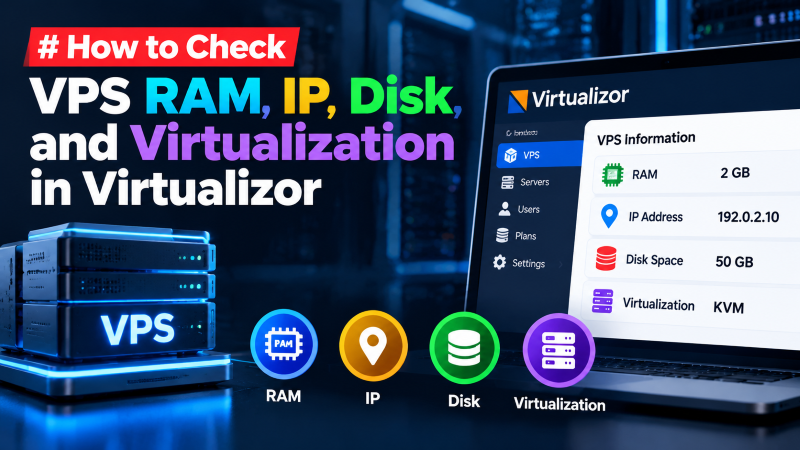
To check your VPS RAM, IP address, disk capacity, and virtualization type in Virtualizor, log into the Virtualizor Enduser Panel (typically accessed via port 4082 or 4083 HTTPS) and navigate to your Virtual Server dashboard. The primary overview screen displays real-time resource meters showing guaranteed vs. utilized RAM, assigned primary and secondary IPv4/IPv6 addresses, total disk space across virtual partitions, and the underlying hypervisor engine (KVM, Xen, or OpenVZ/LXC). Real-time graphs also visualize bandwidth usage and CPU load history.
Virtual Private Servers require ongoing performance monitoring to prevent resource exhaustion. When web traffic expands or background daemons consume excessive memory, understanding your exact hardware allocations is vital.
Virtualizor is one of the hosting industry’s most popular virtualization management panels, providing web-based resource oversight and administrative controls without requiring deep Linux command-line mastery.
Deploying business workloads on a high-throughput high-performance KVM VPS ensures dedicated hardware resource slices and intuitive Virtualizor dashboard controls.
Accessing the Virtualizor Enduser Control Panel
When your hosting provider provisions a VPS, you receive administrative login credentials for Virtualizor. The panel runs over encrypted HTTPS, accessible via `https://your-server-ip:4083` or standard HTTP via port 4082.
Enter your username and password provided in your hosting activation email. Upon authentication, you arrive at the central dashboard listing all virtual instances associated with your client account.
Click the “Manage” icon (wrench symbol) adjacent to your target server to access detailed resource telemetry, network parameters, and power controls.
For organizations managing enterprise Windows Server workloads, provisioning a managed Windows VPS provides identical Virtualizor resource oversight alongside native Remote Desktop administration.
Checking RAM Allocation and Active Utilization
On the VPS dashboard overview page, locate the “RAM” resource gauge. This meter illustrates your allocated guaranteed RAM (e.g., 4096MB) alongside active memory consumption in megabytes and percentages.
In KVM virtualization, memory is strictly dedicated to your virtual machine. Virtualizor accurately reads active memory usage by communicating with the guest QEMU agent inside the operating system.
If memory utilization consistently exceeds 85%, application worker processes risk being terminated by the Linux Out-Of-Memory (OOM) killer, indicating that an immediate RAM upgrade is advisable.
Assistance with kernel memory tuning, swap file optimization, and web server worker configuration is readily available through a certified technical administrator.
Viewing Assigned IPv4, IPv6 & Network Gateways
To view your networking parameters, navigate to the “Network” or “IP Management” tab in the left-hand navigation sidebar.
The panel lists your primary static IPv4 address, subnet mask, default gateway, and nameserver resolvers. If your plan includes additional secondary IPs or native IPv6 subnets, they are detailed here.
Administrators can also inspect real-time bandwidth consumption graphs detailing monthly data transfer volume, peak uplink utilization, and inbound/outbound traffic ratios.
| Resource Component | Virtualizor Location | Key Diagnostic Information |
|---|---|---|
| System Memory (RAM) | Dashboard Overview / Resource Meter | Guaranteed allocation vs. active usage in MB |
| Storage Disk Space | Dashboard Overview / Disk Meter | Total disk allocation, used gigabytes, and inode limits |
| IP Addressing | IP Management Tab | Primary IPv4, secondary IPs, IPv6 subnets, gateway |
| Virtualization Type | VPS Details / Hypervisor Label | KVM (full isolation) vs. OpenVZ/LXC (container) |
| Network Bandwidth | Bandwidth History Tab | Monthly quota usage, current speed, ingress/egress graphs |
Verifying KVM vs. OpenVZ Virtualization Type
The virtualization architecture fundamentally determines your server’s capabilities, kernel independence, and performance isolation.
In Virtualizor, locate the “Virtualization” badge displayed under the server hostname. KVM (Kernel-based Virtual Machine) indicates true hardware virtualization, allowing custom kernels, Docker containers, and Windows installations.
OpenVZ or LXC indicates container-based virtualization, where all virtual environments share the host node’s underlying Linux kernel and cannot run custom kernel modules or WireGuard without host modifications.
Integrated VNC and NoVNC HTML5 Console: Virtualizor includes an in-browser console that allows direct terminal access even if SSH ports are blocked or firewall configurations fail.
Automated One-Click OS Reinstallation: The “Install” tab enables instant re-imaging of your VPS with Ubuntu, AlmaLinux, Debian, or Windows Server with automated root credential generation.
Point-in-Time Snapshot Management: Virtualizor allows users to capture live VM snapshots before major software upgrades, providing an instant rollback mechanism if configurations break.
Interpreting Real-Time CPU Load Averages: The Virtualizor dashboard visualizes CPU core utilization across 1-minute, 5-minute, and 15-minute intervals, enabling administrators to detect runaway processes before hypervisor throttling occurs.
Disk I/O and Inode Usage Inspection: Virtualizor monitors partition read/write throughput and filesystem inode counts, warning administrators when high directory file counts approach storage limits.
Virtual Network Adapter Throughput Monitoring: The network statistics interface logs packet transmission rates and drops, assisting administrators with diagnosing internal routing congestion or external DDoS floods.
Direct Hypervisor Resource Telemetry: Because Virtualizor communicates directly with host hypervisor daemons, it delivers uncompromised visibility into physical CPU core assignment and hardware virtualization states.
Command-Line Diagnostics: Validating Virtualizor Metrics via Linux Shell
While the Virtualizor web panel offers convenient visual dashboards, direct command-line verification provides authoritative hardware telemetry. Linux kernel utilities report real-time memory distribution, storage partition alignments, and physical CPU core topology directly from the operating system.
Running standard diagnostics confirms whether your guest operating system matches the resource limits defined in Virtualizor. It also reveals whether the host hypervisor is utilizing memory ballooning or storage thin provisioning behind the scenes.
Essential Linux Diagnostic Commands for VPS Auditing
System administrators should execute a consistent sequence of command-line audits immediately after provisioning a new virtual machine. These commands verify RAM buffers, active swap spaces, mounted drive sectors, and virtualization drivers.
free -m -h: Displays total, used, free, and cached memory buffers in human-readable megabytes and gigabytes.df -hT --exclude-type=tmpfs: Lists all mounted physical disk filesystems, filesystem types (ext4, xfs), and real storage consumption.ip addr show && ip route: Outputs configured public IPv4/IPv6 addresses, subnet netmasks, and default gateway routing tables.virt-what && systemd-detect-virt: Queries kernel virtualization flags to confirm whether the hypervisor is KVM, Proxmox, Xen, or OpenVZ.lscpu | grep -E "Model name|CPU\(s\)|Virtualization": Reveals allocated virtual CPU cores, base clock frequencies, and hardware passthrough capabilities.
Understanding Virtualization Bottlenecks: Memory Ballooning and Disk I/O Wait
When multiple virtual instances share underlying physical hardware, resource contention can degrade application throughput even if raw allocation numbers look sufficient. In budget hosting environments, host nodes running OpenVZ or LXC containers often overcommit physical RAM and CPU cores.
KVM virtualization provides dedicated virtual hardware boundaries, preventing neighboring instances from cannibalizing your allotted memory. However, administrators must monitor disk I/O wait times to ensure shared storage backplanes are not creating severe storage latency during database write operations.
- I/O Wait Latency Tracking: Use
iostat -xz 1 5to measure average disk wait percentages and identify storage bottlenecks. - VirtIO Driver Verification: Confirm that KVM VirtIO paravirtualized network and disk drivers are loaded to achieve native hypervisor throughput.
- Memory Swapping Thresholds: Set
vm.swappiness=10in/etc/sysctl.confto prioritize fast physical RAM over slower swap space. - Virtual Network Throughput: Test real throughput and jitter using
iperf3against localized benchmark servers to verify uncapped bandwidth.
Automating Resource Threshold Alerts via Virtualizor Hooks
Virtualizor allows administrators and developers to configure automated email and webhook notifications when critical server resources cross dangerous utilization thresholds. Setting warning alerts at 85% RAM utilization and 90% disk capacity prevents abrupt application crashes during traffic surges.
These automated threshold webhooks can trigger autoscaling scripts or notify your sysadmin team via Slack and Telegram before service degradation impacts end users. Proactive monitoring transforms server administration from reactive firefighting into predictable, high-reliability infrastructure management.
- Automated RAM Alerts: Dispatch webhook warnings when active memory exceeds designated safe boundaries.
- Storage Exhaustion Alarms: Trigger automated tickets when disk utilization reaches critical capacity.
- Network Spike Notifications: Alert administrators when bandwidth consumption exceeds baseline operational profiles.
Conclusion: Maintaining Optimal Cloud Performance with Virtualizor
Accurately verifying your virtual private server specifications across both the Virtualizor dashboard and native Linux command line guarantees that you receive every megabyte of hardware performance your workloads demand. Systematic auditing prevents mysterious slowdowns and eliminates host-level overcommitment risks.
By pairing graphical control panel telemetry with real-time CLI metrics and automated resource alert thresholds, your technical team maintains an agile, highly reliable hosting foundation built for sustained growth.
For developers and organizations scaling web applications or requiring dedicated virtual environments, exploring high-performance Linux VPS hosting delivers guaranteed NVMe storage, KVM hypervisor isolation, and full root access for production workloads.
Frequently Asked Questions
What is the default port for accessing the Virtualizor Enduser panel?
The default secure HTTPS port is 4083 (e.g., `https://your-server-ip:4083`), while standard unencrypted HTTP utilizes port 4082.
Why does my Virtualizor RAM meter show different usage than `free -m` in SSH?
Virtualizor measures active memory allocated by the hypervisor, while Linux terminal commands count file buffers and cache as used memory, creating slight numerical discrepancies.
Can I add additional IP addresses directly from Virtualizor?
If your hosting package includes secondary IP allocations, you can assign and bind them to your network interface from the Virtualizor IP Management menu.
What should I do if my disk space is full in Virtualizor?
You can clean up old log files and temporary archives via SSH, or request a storage tier upgrade from your provider, which expands virtual disk boundaries dynamically.
Can I reboot or power cycle my VPS from Virtualizor?
Yes! The dashboard includes instant power controls: Start, Stop, Restart, and Poweroff, which allow hard and soft reboots directly from your browser.