

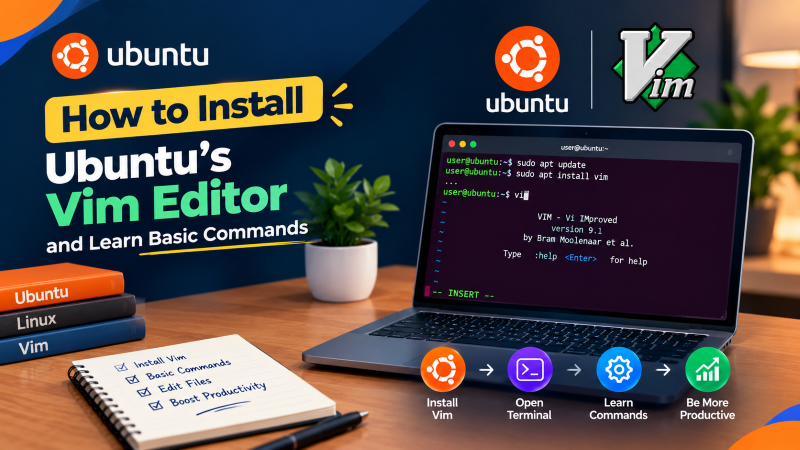
To install Vim on Ubuntu, update your package index and run sudo apt update && sudo apt install vim -y. Vim operates via modal states: launch with vim filename, press i to enter Insert Mode, press Esc to return to Normal Mode, save changes by typing :w, and exit using :wq (save and quit) or :q! (discard changes without saving).
Why Vim Remains the Preferred Linux System Editor
Vim (Vi IMproved) is one of the most ubiquitous, powerful, and resource-efficient command-line text editors available for Unix-like operating systems. Unlike graphical IDEs or heavyweight editors, Vim runs directly within SSH terminals without demanding GUI libraries.
For systems administrators managing cloud servers, Vim offers unparalleled speed when modifying configuration files, writing deployment scripts, or inspecting system logs. Its modal design enables touch-typing navigation without removing your fingers from the keyboard home row.
Deploying Ubuntu on a fast Ubuntu cloud VPS provides a responsive command-line environment where Vim operates with zero input lag.
Step 1: Installing Full Vim on Ubuntu Server
Standard Ubuntu installations often include vim-tiny, a stripped-down binary lacking syntax highlighting, undo trees, and multi-window split capabilities. Installing the full vim package unlocks these features.
Open your terminal and refresh your APT package lists before installing:
sudo apt update
sudo apt install vim -y
Verify that the installation completed successfully by checking the compiled Vim version:
vim --version | head -n 2This command outputs the installed release version along with included compilation flags.
Step 2: Understanding Vim’s Modal Architecture
Vim’s unique power—and primary challenge for beginners—stems from its modal architecture. Unlike typical editors where typing immediately inputs text, Vim separates navigation from content manipulation.
- Normal Mode: The default navigation mode upon opening any file. Keystrokes act as operational commands for cursor movement, line deletion, copy/paste, and search operations.
- Insert Mode: The text editing mode where typed keys appear directly inside the document. Enter Insert Mode from Normal Mode by pressing i.
- Command-Line Mode: Used to execute file-level operations, such as saving, quitting, and global find-and-replace. Enter by typing a colon (:) from Normal Mode.
- Visual Mode: Used for selecting text blocks for copying, formatting, or deletion. Enter by pressing v (character visual) or Shift + V (line visual).
Remember this essential navigation rule: whenever you are unsure of your current state, press the Esc key once or twice to return safely to Normal Mode.
Step 3: Mastering Essential Vim Commands
To edit configuration files efficiently on production systems, commit the following core operational commands to memory:
| Command Key | Operational Mode | Action Description |
|---|---|---|
i |
Normal | Enter Insert Mode at cursor position |
Esc |
Any Mode | Return to Normal Mode |
:w |
Command | Save (write) file changes to disk |
:wq or :x |
Command | Save changes and exit Vim |
:q! |
Command | Force quit Vim, discarding unsaved changes |
dd |
Normal | Delete (cut) the entire current line |
yy |
Normal | Yank (copy) the entire current line |
p |
Normal | Paste copied text below current cursor line |
u |
Normal | Undo the last change |
Step 4: Customizing Your Vim Configuration (.vimrc)
Default Vim settings can be significantly improved by creating a personal configuration file. Create or open ~/.vimrc in your home directory:
vim ~/.vimrcAdd the following directives to activate line numbering, syntax highlighting, and smart tab indentation:
" Enable syntax coloring
syntax on

" Display relative and absolute line numbers
set number

" Configure tab spacing for clean coding
set tabstop=4
set shiftwidth=4
set expandtab

" Enable smart search highlighting
set hlsearch
set incsearch
set ignorecase
set smartcase
Save and exit with :wq. The next time you open a file, your custom editor preferences will load automatically.
Administrators configuring mission-critical web clusters on an enterprise dedicated server will appreciate how syntax highlighting prevents indentation and syntax errors when modifying Nginx, Apache, or MySQL configurations.
Advanced Navigation: Search and Replace
Vim provides exceptional regex-powered search and replacement capabilities. To search forward in a file, enter Normal Mode, type /search_term, and press Enter. Press n to cycle forward to the next match, or Shift + N to cycle backward.
To execute a global search and replace across the entire file, use the command-line substitution syntax:
:%s/old_text/new_text/gcThe g flag replaces all occurrences on each line, while the c flag prompts for confirmation before applying each change. Mastering these substitution commands saves hours of repetitive editing during large server migrations. If you need assistance configuring remote editing environments or SSH keys, contacting a Linux administration specialist ensures your remote terminal setup stays secure.
Customizing `.vimrc` for Professional Development and Server Administration
While standard Vim functions reliably out of the box, tailoring your configuration file (~/.vimrc) transforms the bare editor into a powerful development environment. Custom configurations streamline navigation, enable syntax highlighting, and standardize tab spacing across team projects.
Adding thoughtful defaults eliminates common annoyances, such as unwanted auto-indentation during clipboard pasting or invisible line numbering during troubleshooting. A properly customized `.vimrc` file enhances editing velocity while maintaining the lightweight footprint Vim is celebrated for.
Furthermore, configuring hybrid line numbering (combining absolute current line numbers with relative adjacent numbers) accelerates cursor jumping across long configuration scripts. Developers can leap directly to target lines using simple numeric motions like 15k or 20j.
Essential `.vimrc` Configuration Directives
Add these core configuration lines to your user or global configuration file to optimize editing performance on Ubuntu servers.
syntax on: Enables intelligent color syntax highlighting for configuration files, Bash scripts, and code.set number relativenumber: Displays hybrid line numbers for lightning-fast vertical cursor navigation.set tabstop=4 shiftwidth=4 expandtab: Converts tabs into four spaces to preserve consistent code indentation.set incsearch hlsearch ignorecase smartcase: Powers incremental, highlightable search that intelligently handles case sensitivity.set clipboard=unnamedplus: Bridges the Vim internal register with system clipboards for effortless text copying.
Advanced Text Manipulation: Macros, Global Regex, and Window Splits
Mastering Vim extends far beyond entering text and writing changes with :wq. Vim includes powerful text automation tools that allow administrators to refactor thousands of configuration lines within seconds without third-party scripts.
Recording macros with the q key records a sequence of keystrokes that can be replayed across multiple lines using @a. Similarly, Vim global commands like :g/pattern/d instantly purge matching lines across entire multi-megabyte log files with microsecond speed.
- Window and Viewport Splitting: Use
:vsplitand:splitto inspect multiple configuration files side by side simultaneously. - Global Search and Replace: Execute
:%s/old_string/new_string/gcto substitute strings globally with interactive confirmation prompts. - Visual Block Mode: Press
Ctrl + vto select vertical columns of text, enabling simultaneous editing or commenting across multiple lines. - Plugin Ecosystem with Vim-Plug: Install modern lightweight plugin managers to integrate git diff indicators and directory tree explorers.
Accelerating Navigation with Vim Marks, Registers, and Jump Lists
Vim includes powerful navigational registers and location marks that allow developers to navigate complex source code trees without losing context. Pressing ma sets a local bookmark at your current cursor position, allowing you to return instantly from anywhere in the file with 'a.
Similarly, utilizing the internal jump list with Ctrl + o (jump backward) and Ctrl + i (jump forward) enables rapid backtracking across recent edits. Mastering these positioning shortcuts transforms multi-file code editing into a fluid, highly efficient terminal experience.
- Named Bookmark Registers: Store file bookmarks across multiple files for swift cross-directory navigation.
- Persistent Undo Trees: Traverse historical edits even after closing and reopening terminal sessions.
- Custom Leader Key Mappings: Map repetitive workflows to custom leader key combinations for speed.
Conclusion: Unlocking Command-Line Velocity with Vim
Vim remains one of the most efficient, durable, and versatile tools in the Linux system administrator’s arsenal. Investing the time to master its modal paradigms and keyboard shortcuts pays immense dividends in daily editing speed and terminal proficiency.
By customizing your `.vimrc`, learning advanced macro mechanics, and practicing navigation motions, you transform everyday server maintenance into a smooth, lightning-fast workflow across any Ubuntu enterprise environment.
Frequently Asked Questions
How do I exit Vim if I am completely stuck?
Press the Esc key several times to ensure you are in Normal Mode, then type :q! and press Enter. This forcefully quits Vim without saving any changes.
How can I jump directly to a specific line number in Vim?
From Normal Mode, type the line number followed by G (for example, 45G jumps to line 45). Alternatively, type :45 in Command Mode and press Enter.
What is the built-in Vim tutorial tool?
Ubuntu includes an interactive CLI tutorial called vimtutor. Type vimtutor in your shell to launch an interactive 30-minute hands-on practice session.
How do I set Vim as the default system editor in Ubuntu?
Run sudo update-alternatives –config editor and select the menu number corresponding to /usr/bin/vim.basic to set Vim as the default editor for crontab and git commits.
How do I split screens horizontally or vertically in Vim?
In Command Mode, type :split for a horizontal split or :vsplit for a vertical split. Switch between panes using Ctrl + W followed by the arrow keys.