

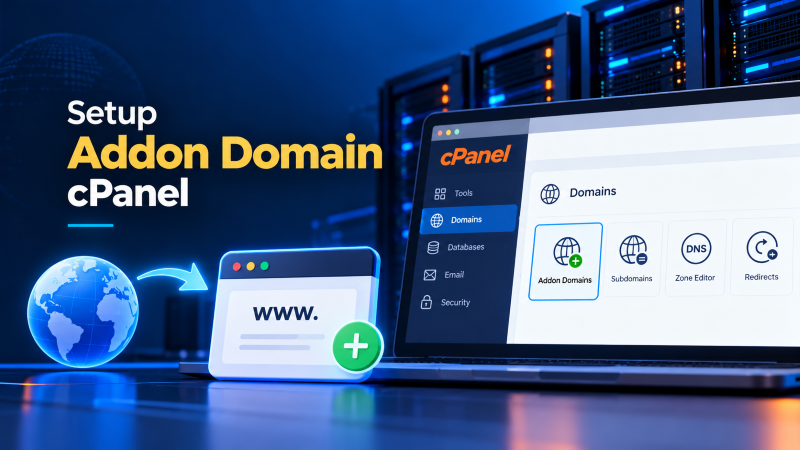
To set up an Addon Domain in cPanel: Log into your cPanel account, navigate to Domains > Domains (or Addon Domains), click Create A New Domain, enter your fully qualified domain name (e.g., example.com), and uncheck the option ‘Share document root’ to assign an isolated directory (such as /public_html/example.com or /home/username/example.com). Click Submit to create the virtual host. Ensure your domain registrar has updated nameservers or an A record pointing to your server IP, after which cPanel provisions a free AutoSSL certificate. For resource-isolated multi-tenant hosting, deploy on Cloud VPS hosting with cPanel or a dedicated dedicated server hosting platform.
Managing multiple independent websites under a single administrative control panel is one of the most practical and cost-effective hosting strategies available. Rather than provisioning individual hosting accounts with redundant billing cycles for every project, cPanel’s Addon Domain feature allows webmasters to host fully autonomous websites—each equipped with its own distinct domain name, independent file directories, private MySQL databases, dedicated email inboxes, and isolated SSL/TLS encryption. For authoritative platform specifications, review the official cPanel Domain Documentation and standard Apache HTTP Server VirtualHost Documentation.
Whether you are expanding a growing portfolio of digital publishing sites on reliable Linux web hosting solutions, managing staging environments, or running eCommerce storefronts across a high-performance virtual private server platform, configuring your addon domains with rigorous directory isolation prevents common configuration errors, .htaccess rule collisions, and security vulnerabilities.
What is an Addon Domain? Multi-Site Architecture and cPanel Mechanics
From an end-user and search engine perspective, an Addon Domain behaves exactly like a standalone website hosted on an independent server. Visitors who type newsite.com into their browser address bar will see the content designated for that domain, completely unaware that the underlying website shares server infrastructure with your primary cPanel domain.
Behind the interface, cPanel achieves this seamless multi-site architecture by dynamically modifying the web server configuration and DNS routing tables:
- Apache VirtualHost Configuration: cPanel writes a discrete
<VirtualHost>directive block inside the web server configuration, binding incoming HTTP/HTTPS requests for the addon domain to its unique document root folder. - DNS Zone Mapping: A complete DNS zone file is generated for the addon domain, creating standard root (
@),www, mail (MX), and AutoSSL DCV verification records in compliance with IETF RFC 1034 Domain System Specifications. - Subdomain Association: In historical cPanel architectures, adding an addon domain automatically created a system subdomain (e.g.,
newsite.primarydomain.com) to route internal requests through Apache. Modern cPanel versions streamline this process, allowing direct virtual host binding while maintaining full domain independence. - Mail Exchanger Isolation: cPanel automatically updates local mail routing (Exim), enabling you to create independent email addresses such as
[email protected]completely separate from your primary domain’s email accounts.
Addon Domain vs. Subdomain vs. Parked Domain (Alias): Architectural Comparison
Before adding new web properties to your server, it is vital to select the correct domain architecture. cPanel provides three distinct mechanisms for binding domain names to hosting accounts, each serving a unique technical objective:
| Domain Type | Document Root Location | URL & Branding | Email Routing | SSL Certificate | Primary Use Case |
|---|---|---|---|---|---|
| Addon Domain | Discrete isolated directory (e.g., /public_html/site2/) |
Completely independent (site2.com) |
Separate independent inboxes and forwarders | Independent AutoSSL certificate per domain | Hosting multiple distinct commercial or personal websites on one account |
| Subdomain | Subdirectory of primary or custom folder | Prefix of parent domain (blog.domain.com) |
Shares or inherits primary domain email routes | Covered via Wildcard or independent AutoSSL | Segmenting large portals (blogs, knowledge bases, staging apps, API endpoints) |
| Parked Domain (Alias) | Mirrors primary domain (/public_html/) |
Displays primary site content under alias URL | Forwards emails to primary domain inboxes | Subject Alternative Name (SAN) on primary SSL | Brand protection, alternative TLDs (.net, .org), or common misspellings |
| WHM Discrete Account | Isolated cPanel home (/home/user2/public_html) |
Dedicated cPanel account and credentials | Fully isolated Exim mail spool and queues | Dedicated AutoSSL per user container | Client management, agencies, multi-tenant security isolation on VPS/WHM |
For websites requiring absolute administrative separation or client-facing dashboard isolation, upgrading to cPanel web hosting servers powered by WebHost Manager (WHM) is superior to cramming multiple client websites into a single shared cPanel user environment.
Prerequisites Before Adding a Domain: DNS Delegation, A Records, and Propagation
Before initiating the addon domain creation process within cPanel, the domain name itself must be registered, active, and correctly pointed to your hosting server. If DNS records are not established in advance, cPanel’s pre-flight verification checks may reject the creation request or generate temporary domain resolution warnings.
You can connect your domain to your hosting server using one of two standard DNS methods:
- Nameserver Delegation (Recommended for Full cPanel Management): Log into your domain registrar account (such as Namecheap, GoDaddy, or Cloudflare) and update the domain’s custom nameservers (NS records) to match your hosting provider’s assigned nameservers (e.g.,
ns1.onliveserver.comandns2.onliveserver.com). This delegates all DNS management directly to your cPanel DNS zone editor. - Direct A Record Mapping: If your DNS is hosted externally (such as Cloudflare or AWS Route 53), navigate to your external DNS management console and add an
A recordpointing the root domain (@) andwwwhostnames directly to your server’s public IPv4 address.
Ensure that global DNS propagation has reached at least your local resolver before proceeding. You can verify propagation using command-line tools like dig example.com +short or online DNS checkers. If you are also configuring custom forwarding routes or subdomains, review our guides on setting up domain redirects in cPanel and setting up subdomains in cPanel.
Step-by-Step Tutorial: How to Set Up an Addon Domain in cPanel
Modern versions of cPanel (Jupiter and Paper Lantern themes) have consolidated domain management into a unified Domains interface. Follow these steps to configure your new addon domain with optimal settings:
Step 1: Access the Domains Interface
Log into your cPanel administrative portal. In the main navigation dashboard, locate the Domains section and click on Domains (on older cPanel interfaces, this may appear as Addon Domains). You will see a list of all existing domains currently linked to your hosting account.
Step 2: Create a New Domain
Click the prominent blue button labeled Create A New Domain on the right side of the dashboard. This opens the domain configuration form.
Step 3: Enter Domain Name and Configure Document Root
Carefully populate the domain creation fields according to these technical recommendations:
- Domain: Enter your registered domain name without protocols or trailing slashes (e.g.,
mysecondwebsite.com). - Share Document Root: By default, cPanel may display a checkbox labeled “Share document root (/home/username/public_html) with ‘primarydomain.com'”. Ensure this box is unchecked. Leaving it checked turns your domain into a mirror alias rather than an independent addon domain.
- Document Root: When unchecked, cPanel suggests a dedicated directory path. You can specify an isolated folder such as
/public_html/mysecondwebsite.comor preferably outsidepublic_htmlat/home/username/mysecondwebsite.com. - Subdomain: cPanel automatically populates a system routing identifier (e.g.,
mysecondwebsite.primarydomain.com). You can leave this default value unchanged.
Step 4: Submit and Verify Virtual Host Generation
Click the Submit button (or Submit and Create Another Domain if adding multiple domains). cPanel will communicate with the underlying Apache and DNS daemons to create the directory structure, compile virtual host configurations, and bind local mail routing. Upon completion, a green confirmation banner confirms that the addon domain has been successfully provisioned.
Document Root Best Practices: Isolating Addon Domains from public_html
A critical architectural choice when adding domains is deciding where your website files will live on the server’s filesystem. Understanding the distinction between nesting inside public_html versus isolating in the user home directory is essential for stability and security.
The Nested Approach (/public_html/addondomain.com)
Historically, cPanel defaulted to placing addon domain folders inside the primary domain’s root (e.g., /home/username/public_html/addondomain.com). While functional, this approach introduces subtle architectural liabilities:
- .htaccess Collision: Any directives, URL rewrites, or security rules defined in the primary site’s root
/public_html/.htaccessfile automatically cascade into subdirectories, potentially breaking WordPress permalinks or redirecting URLs unexpectedly on the addon domain. - Subfolder URL Exposure: Visitors or search engine crawlers could theoretically access your secondary site via
primarydomain.com/addondomain.com/, creating duplicate content issues unless specifically blocked via rewrite rules.
The Isolated Approach (/home/username/addondomain.com)
Modern Linux hosting best practices strongly recommend creating the document root alongside public_html rather than inside it (e.g., /home/username/addondomain.com/). This grants complete independence:
- Total isolation from the primary site’s
.htaccessand WordPress configuration files. - Zero risk of directory traversal or subfolder indexing by search engines.
- Cleaner organization when managing backups, FTP accounts, and file permissions. If you need to modify read/write access for your CMS, consult our guide on changing Linux file permissions.
SSL/TLS Provisioning: Automating Free AutoSSL Certificates for Addon Domains
A modern website cannot operate effectively without HTTPS encryption. Modern web browsers flag unencrypted HTTP sites as insecure, and search engines treat SSL certificates as a mandatory ranking signal. Fortunately, cPanel includes an integrated AutoSSL engine that automatically provisions free SSL/TLS certificates through Let’s Encrypt or Sectigo.
To ensure your newly created addon domain receives instant HTTPS coverage:
- In the cPanel dashboard, navigate to the Security section and click SSL/TLS Status.
- In the domain list, find your newly created addon domain alongside its
wwwand mail subdomains. - If the domain displays an amber warning icon indicating missing coverage, ensure that DNS records have fully propagated, then click the blue Run AutoSSL button at the top of the screen.
- AutoSSL will run Domain Control Validation (DCV) via HTTP-01 challenge, generate the private key, verify certificate authority signing, and automatically bind the certificate to Apache’s SSL vHost container within minutes.
Once active, configure your CMS (such as WordPress) to enforce HTTPS across all internal assets and canonical URLs.
Troubleshooting Common cPanel Addon Domain Configuration Errors
While cPanel streamlines multi-site administration, complex server setups occasionally trigger errors. Below are the most frequent issues and their resolutions:
- Error: “The domain is already pointed to an IP address that does not resolve to this server”: This occurs if your hosting provider enables the Prevent cPanel users from creating domains that don’t point to the server security tweak in WHM. Ensure your domain registrar has updated A records or nameservers and allow DNS propagation to finish before attempting creation.
- Error: “The domain already exists in the Apache configuration or DNS zone”: This indicates that an old DNS zone file or parked alias remains on the server. Contact your hosting support to remove lingering DNS zones from
/var/named/or check your cPanel Aliases menu to remove any conflicting bindings. - AutoSSL DCV Failure (HTTP 404 or Timeout): If AutoSSL fails to issue a certificate, check that your
.htaccessfile is not blocking access to the hidden/.well-known/acme-challenge/directory used for certificate validation. - Email Delivery Conflicts: If emails sent from your addon domain are not reaching recipients, verify that your cPanel Email Routing setting is set to Local Mail Exchanger (if hosting mail on cPanel) or Remote Mail Exchanger (if routing through Google Workspace or Microsoft 365). You can also configure automated relays following our tutorial on configuring email forwarders in cPanel.
Infrastructure Sizing: When to Transition from Shared cPanel to VPS or Dedicated Hosting
The ability to host multiple addon domains under one account offers significant cost efficiency, but it also means that every website shares the same underlying hardware allocation. In a shared cPanel hosting environment, CloudLinux LVE limits (such as 100% CPU, 1GB to 2GB Physical Memory, and limited I/O throughput) apply to the entire cPanel user account, not per individual addon domain.
Consider upgrading your infrastructure if you experience any of the following operational bottlenecks:
- Resource Throttling: A sudden traffic spike or malicious bot attack on one addon domain exhausts PHP worker processes, causing all other websites on the account to return HTTP 503 or 508 Resource Limit Reached errors.
- Cross-Site Security Vulnerability: Because all addon domains share the same Linux user ID (UID), a compromised CMS plugin or backdoor on one website could potentially expose the file directories and database credentials of all other sites on that account.
- Need for Independent Client Access: When managing websites for freelance clients, sharing your primary cPanel credentials poses severe privacy and security risks. Upgrading to a managed VPS with WebHost Manager allows you to provision discrete, sandboxed cPanel accounts for every client.
Infrastructure Decision: Optimize Multi-Site Performance & Security
Selecting the right hosting environment ensures your addon domains maintain rapid page load speeds, independent security perimeters, and guaranteed resource isolation as your online properties scale.
🌐 Shared cPanel Multi-Site
Ideal For: Personal blogs, staging environments, low-traffic portfolios, and proof-of-concept projects.
Key Attributes: Economical single-account management, shared PHP worker pools, unified billing, and centralized cPanel dashboard administration.
⚡ Dedicated cPanel / WHM VPS Hosting
Ideal For: Digital agencies, high-traffic eCommerce storefronts, mission-critical business portals, and client hosting.
Key Attributes: Dedicated vCPU and NVMe allocations, root access, complete CloudLinux user sandboxing, and discrete cPanel accounts via WebHost Manager.